Files
Engine offers several options for working with files and file systems. This article describes the file handling functionality available to you on the Engine platform.
Use Cases
You can use Engine file functionality to
- retreive files from a remote system and store them in Engine
- transfer files from Engine to remote systems
- send files as attachments of emails
- use files as templates for mails or messages
Concept
You can store binary content as files in Engine. Files can be accessed using the flow API. Several connectors directly read or write Engine files.
User Interface
The User Interface allows to upload and download files, and to view — and, for text files, edit — their content directly in the browser. What is shown adapts to the file's detected type (see Viewing file content below).
Content type detection
Whenever file content is written — an upload, a flow API save_*_content call, or a
connector that stores a file — Engine detects the file's MIME content type
server-side and stores it on the FILE record in the read-only content_type field.
Detection is best-effort and resolves in this order:
- an authoritative magic-byte sniff of the content for known binary containers and
media (for example gzip, bzip2, xz, zstd, zip, 7z, RAR, PDF, PNG, JPEG, GIF). A
magic-byte match takes precedence over the file name, so a compressed or
mis-named file is typed by its real container — a
report.xml.gzisapplication/gzip, not the innertext/xml; - an exact, extension-less file-name match (for example
Dockerfile); - the file-name extension (an explicit map, then the standard
mimetypesregistry); - a text-versus-binary sniff of the content when the name and extension are inconclusive.
The value is a canonical MIME string such as text/x-python, application/json,
image/png, application/gzip, or application/octet-stream. Because it is stored on the record, every
API, MCP, and flow-API consumer can adapt to a file's type — not only the Console. The
field is computed by Engine and cannot be set directly.
The Console file record screen shows the detected content type next to the file's size. The size is displayed in human-readable binary units (KiB, MiB, GiB); hovering it reveals the exact byte count.
Read a file's detected content type
import flow_api

def handler(system: flow_api.System, this: flow_api.Execution, inputs: dict):
    system.file('config.yaml').save_text_content('key: value\n')
    # content_type is detected and stored automatically on write
    this.log(system.file('config.yaml').get('content_type'))  # -> application/yaml
    return this.success('all done')
Content encoding detection
For text files, Engine also detects the byte encoding of the content and stores
it on the FILE record in the read-only content_encoding field, alongside content_type.
Detection runs on the same writes as content-type detection and only for text content
types (text/*, texty application/* such as JSON and XML); binary files leave the
field empty. The value is a canonical lower-case label such as utf-8, windows-1252, or
utf-16 — valid both as a Python codec name and as a browser TextDecoder label. UTF-8 is
recognised directly; other encodings are detected heuristically, so the result is
best-effort and can be ambiguous for very short samples.
Detecting the encoding never changes the file: the stored bytes are always kept
binary-identical to what was written. This matters when a file is later transferred to
a system that expects a specific encoding — Engine records the encoding it observed rather
than re-encoding the content. Consumers that need text can use content_encoding to decode
the raw bytes correctly. Like content_type, the field is computed by Engine and cannot be
set directly.
Viewing file content
The Console adapts how it displays a file's content to the detected content_type:
| File type | Console display |
|---|---|
Plain text, or a texty file with no dedicated grammar (text/plain, CSV, TOML, …) | Plaintext code editor (editable) |
Source or structured text — Python, JSON, YAML, JavaScript, TypeScript, SQL, XML, HTML, Markdown, shell, Dockerfile, INI | Code editor with syntax highlighting |
Images (image/png, image/jpeg, image/gif, image/webp, …) | Inline, size-capped image preview |
| Everything else — binary, PDF, audio, video, archives, and SVG | Download only: the file size and a download button are shown, with no inline render |
Text shown in the editor is decoded for display using the detected content_encoding, so a
file written in a non-UTF-8 encoding (for example windows-1252 or utf-16) renders as
correct text rather than mojibake. The stored bytes are not altered — decoding happens only
for display, and an unedited file is saved back byte-for-byte.
SVG images are shown as download-only rather than rendered inline, because an SVG can
embed scripts (a cross-site-scripting risk). Files whose content_type has not yet been
detected — for example files created before this feature — fall back to the plaintext
editor.
Large files are not loaded into the browser automatically. Two workspace configuration limits govern this:
FILE_SIZE_BYTES_ALWAYS_LOAD_LIMIT— files up to this size are loaded and displayed automatically.FILE_SIZE_BYTES_OPTIONAL_LOAD_LIMIT— files larger than the always-load limit but up to this larger limit are not loaded automatically; you can choose to load them on demand.
Files larger than the optional-load limit are download-only regardless of their type.
Upload files
- Click the "+ Create" button in the left hand menu and select "Upload file".


Buttons to upload files
- In the dialog choose one or several files and confirm.
- The upload progress is shown in the top bar.
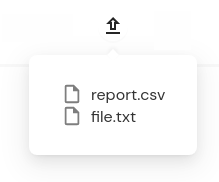
The upload progress bar
- Clicking on a file in the upload progress panel will open the file in the User Interface.
Download files
Click the "Download" button next to any file.

The download button
Flow API
The flow API provides methods to read and write file content as bytes, base64 string, or decoded as utf-8 string.
Create, write, read, list, and delete files
import flow_api

def handler(system: flow_api.System, this: flow_api.Execution, inputs: dict):
    # store a text (utf8 string)
    system.file('my-file.txt').save_text_content('text content')
    # read as base64
    assert system.file('my-file.txt').get_base64_content() == 'dGV4dCBjb250ZW50'
    # store bytes data
    system.file('my-file.dat').save_bytes_content(b'bytes data \xc3\xa4\xc3\xb6\xc3\xbc')
    # read as text (utf8 string)
    assert system.file('my-file.dat').get_text_content() == 'bytes data äöü'
    # store a base64 encoded string
    system.file('my-file.ext').save_base64_content('Q2xvdWRvbWF0aW9u')
    # read as bytes
    assert system.file('my-file.ext').get_bytes_content() == b'Cloudomation'

    # list files
    for file_ in system.files():
        this.log(file_.get('name', 'content_size_bytes'))

    # clean up
    system.file('my-file.txt').delete()
    system.file('my-file.dat').delete()
    system.file('my-file.ext').delete()

    return this.success('all done')
Connectors accessing files
SCP
The SCP connector allows to copy files using the SCP protocol.
Read and write a file using the SCP connector.
import flow_api

def handler(system: flow_api.System, this: flow_api.Execution, inputs: dict):
    # copy a file from a remote SCP host to Engine
    this.connect(
        'my-web-server',
        mode={
            'mode_name': 'copy_file_to_engine',
            'source_file_name': '/var/log/apache2/access.log',
            'destination_file_name': 'apache-access.log',
            'destination_location': {
                'location_mode': 'inherit_from_execution',
            },
        },
    )

    # access the file content
    content = system.file('apache-access.log').get_text_content()

    # copy a file from Engine to a remote SCP host
    this.connect(
        'my-web-server',
        mode={
            'mode_name': 'copy_file_from_engine',
            'source_file_name': 'index.html',
            'destination_file_name': '/var/www/html/index.html',
        },
    )

    return this.success('all done')
SMB
The SMB connector allows to copy files using the SMB protocol.
Read and write a file using the SMB connector.
import flow_api

def handler(system: flow_api.System, this: flow_api.Execution, inputs: dict):
    # copy a file from a fileshare to Engine
    this.connect(
        'my-windows-host',
        mode={
            'mode_name': 'copy_file_to_engine',
            'source_file_name': 'share-name\\path\\to\\report.xlsx',
            'destination_file_name': 'report.xlsx',
            'destination_location': {
                'location_mode': 'inherit_from_execution',
            },
        },
    )

    # copy a file from Engine to a fileshare
    this.connect(
        'my-windows-host',
        mode={
            'mode_name': 'copy_file_from_engine',
            'source_file_name': 'processing.log',
            'destination_file_name': 'report-share\\processing.log',
        },
    )

    return this.success('all done')
GIT
The GIT connector allows to fetch files from a repository and store them in Engine
Fetch files from git and store them in Engine
import flow_api

def handler(system: flow_api.System, this: flow_api.Execution, inputs: dict):
    this.connect(
        connector_type='GIT',
        repository_url='https://example.com/path/to/repo.git',
        mode={
            'mode_name': 'get_files',
            'ref': 'develop',
            'destination': {
                'destination_type': 'file',
                'file_prefix': 'files-from-repository',
                'destination_location': {
                    'location_mode': 'inherit_from_execution',
                },
            },
        },
    )

    # list files which were fetched
    for file_ in system.files(
            filter_={
                'field': 'name',
                'op': 'like',
                'value': 'files-from-repository%',
            },
    ):
        this.log(file_.get('name', 'content_size_bytes'))
        # clean up
        file_.delete()

    return this.success('all done')
IMAP
The IMAP connector can store email attachments in Engine
Fetch an email and store the attachments in Engine
import datetime
import flow_api

def handler(system: flow_api.System, this: flow_api.Execution, inputs: dict):
    # search for todays messages with "report" in the subject line
    today = datetime.date.today().strftime('%d-%b-%Y')
    message_ids = this.connect(
        'my-imap-server',
        name='search for mails',
        mode={
            'mode_name': 'search',
            'folder': 'INBOX',
            'criteria': [
                'SUBJECT', 'report',
                'SINCE', today,
            ],
        },
    ).get('output_value')['result']
    messages = this.connect(
        'my-imap-server',
        name='fetch mails',
        mode={
            'mode_name': 'fetch',
            'message_set': message_ids,
            # attachments are stored as `{message-id}-{attachment-file-name}`
            'store_attachments': True,
        },
    ).get('output_value')['result']

    # list all attachments which were fetched
    for message_id in message_ids:
        for file_ in system.files(
                filter_={
                    'field': 'name',
                    'op': 'like',
                    'value': f'{message_id}-%',
                },
        ):
            this.log(f'attachment of message {message_id}: {file_.get("name")}')

    return this.success('all done')
SMTP
The SMTP connector allows to send mails with attachments from Engine files.
Send a mail with attachment
import flow_api

def handler(system: flow_api.System, this: flow_api.Execution, inputs: dict):
    this.connect(
        'my-smtp-server',
        name='send report mail',
        mode={
            'mode_name': 'send_email',
            'from_': 'no-reply@example.com',
            'to': ['user@example.com'],
            'subject': 'monthly report',
            'text': 'the monthly processing report is attached',
            'attachments': [
                # attach files from the Engine files resource
                'cloudomation:report.csv',
                'cloudomation:report.sig',
                # attach files from an URL
                'https://cloudomation.com/wp-content/uploads/2020/11/1-1.jpg',
            ],
        },
    )
    return this.success('all done')
REST
The REST connector allows to make multipart POST requests with file parts from Engine.
Make a multipart POST request containing a file from Engine
import flow_api

def handler(system: flow_api.System, this: flow_api.Execution, inputs: dict):
    this.connect(
        connector_type='REST',
        **flow_api.split_url('https://httpbingo.org/post'),
        mode={
            'mode_name': 'post',
            'body': {
                'body_mode': 'multipart',
                'multipart': {
                    'parts': [
                        {
                            'name': 'string-field',
                            'value': 'spam & eggs',
                        },
                        {
                            'name': 'file',
                            'file': 'report.txt',
                        },
                    ],
                },
            },
        },
    )
    return this.success('all done')