Advanced Search
The advanced search allows filtered search for all records in an Engine workspace.
Accessing the Advanced Search
To access the advanced search, first open the quick search popover by clicking into the quick search bar in the top navigation. Then click on the "Advanced Search" button.
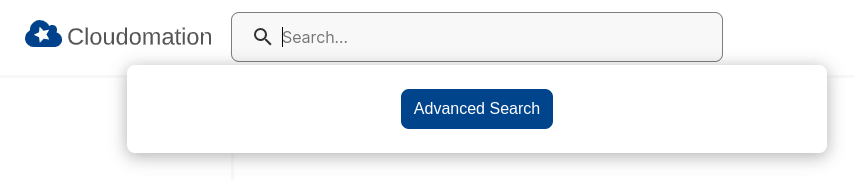
the advanced search button in the quick search popover
Your search filters are stored in your browser (in localStorage), not in the URL. They persist automatically across page reloads and navigation, and stay private to your browser. Because the filter is no longer part of the page URL, bookmarking or sharing the URL will not carry your query. Some links do embed filter parameters — for example, the Advanced search button on an object template's custom-object list — and opening such a link imports those filters into your browser, replacing the currently stored filter.
Using the Advanced Search
The advanced search screen is structured into three tabs: Resources, Executions, and Messages.
There are a wide number of possibilities to filter the search results.
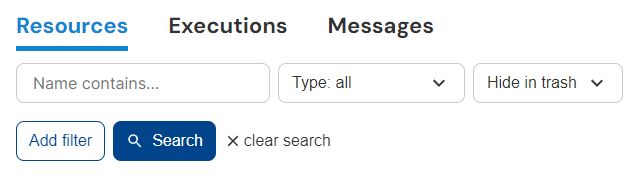
the advanced search filters
Simple Filters
You can search by name, filter for type (e.g. Flow or Setting), and select if trashed items should be shown. For these filters you don't need to click on the search button, the search will be automatically performed.
Name Filter
Limits the search to contain only records with names that contain the given string. For example, the string "test" will yield results like "test-flow", "run-tests".
Type Filter
Limits the search to specific types.
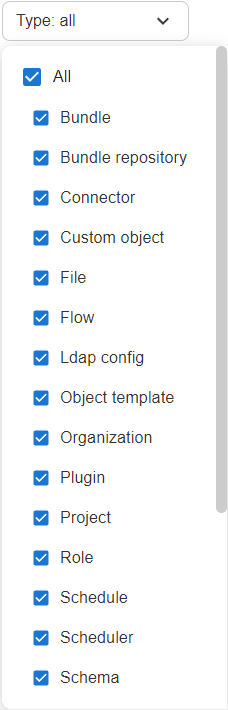
the type filter
You can also filter for types by using the name of the type in the search bar.
E.g. when you enter "flow" into the search bar, a second button appears with the text
"Search for all flows". Click on it to set flow as a type filter.

the alternative type filter
Record Status Filter
Limit the search to trashed or non-trashed records.

the record status filter
Advanced Filters
Engine allows you to use complex filtering logic to find records that fulfil very specific criteria.
Adding Filters
You can start adding filters by clicking on "Add filter".

the add filter button
Alternatively, you can right-click on a field of a record in the list view, then click on "Add as a filter"

the pop-over to add a filter
From here on, you can specify attributes to filter by, change the AND / OR logic, add more filters or groups. Once you're ready, click on
"Search" to perform the query.
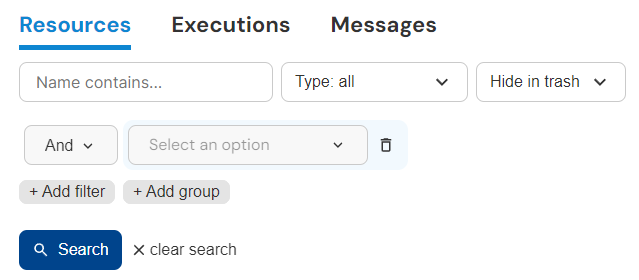
from here on you can specify the filter
Using AND / OR Logic
You can combine AND / OR operators and nest them in any combination. An operator is applied to every filter within its group.
Clicking on "Add filter" adds a filter to the current group. Clicking on "Add group" creates a new group within the current group i.e. nesting.
Let's look at some examples to understand this better.
ANDHere's how we can filter for records that are read-only and are created after a certain time.
- Select
Is readonlyfrom the attribute dropdown and set it toTrue.

- Add a filter to the current group.

- Select
Created atfrom the attribute dropdown, then selectAfterand set it to a time.

This filter would be equivalent to the following python code (using str instead of datetime for simplicity):
is_readonly is True and created_at > '2000-01-01 12:00'
ORTo switch this logic to find records that are read-only or are created after a certain time, simply change AND to OR from the operator dropdown
- Follow the same steps as in the previous example but select
ORfrom the operator dropdown.

This filter would be equivalent to the following python code (using str instead of datetime for simplicity):
is_readonly is True or created_at > '2000-01-01 12:00'
AND and ORFor the final example, let's combine the two operators. This will also show us, how to nest operators using groups.
We will now create a filter that shows records that fulfil at least one of two conditions:
- are read-only and are created after a certain time,
- are not read-only and are created before that certain time.
- Start with an empty filter and set the operator to
OR.

- Add a new group to create a nested condition. Now this group also has the button to add filters or new subgroups.
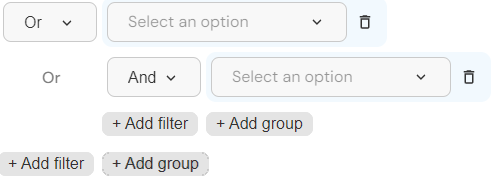
- Delete the attribute dropdown from the top level so the operator dropdowns are on the same level, next to each other.

- Add a filter to the subgroup with the
ANDoperator. This subgroup will define the first condition.
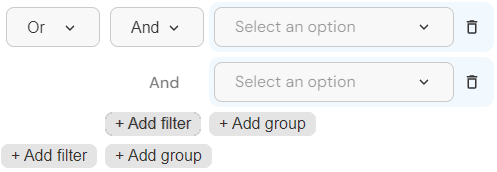
- Add a second subgroup to the top group.
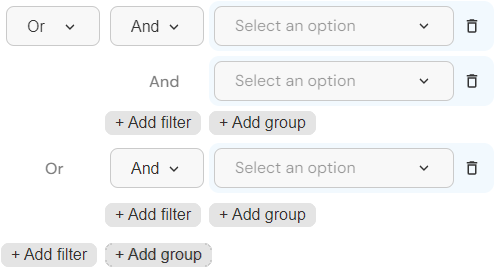
- Add a filter to the second subgroup. This subgroup will define the second condition.
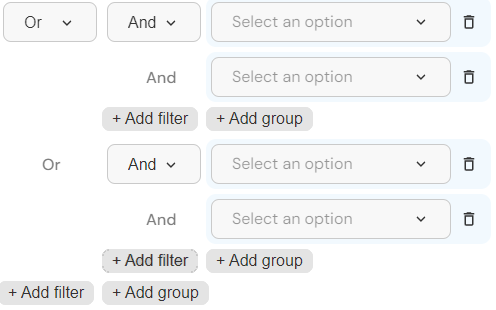
- Now that you have the logical skeleton, fill in the attribute dropdowns.
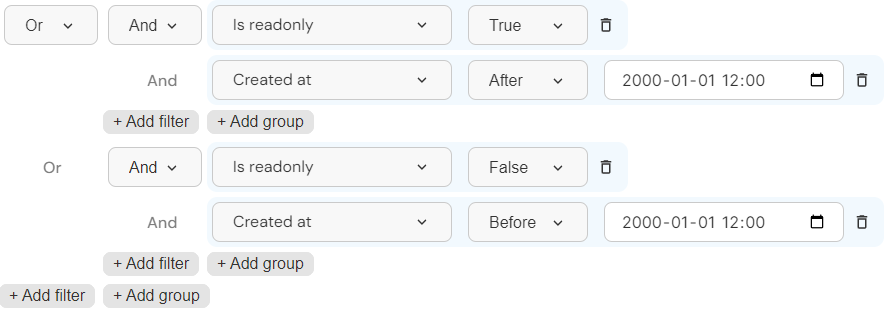
This filter would be equivalent to the following python code (using str instead of datetime for simplicity):
(is_readonly is True and created_at > '2000-01-01 12:00')
or (is_readonly is False and created_at < '2000-01-01 12:00')
Direct vs. Indirect Filters
You can find records by attributes that are directly or indirectly associated with them. Indirect attributes are distinguishable by their ending: "(all attributes)"
An example for a direct filter would be finding records that are in a specific project (here we can directly filter by the project_id of the record)

here is a direct filter
An example for an indirect filter would be finding records that are in a project that was created by a specific user (here first we find projects that were created by a user with a specific id. Then we can see which records have those project_ids)

here is an indirect filter
Filtering Custom Objects by Attribute Values
Custom objects carry user-defined attributes, declared on their object template. In addition to a custom object's built-in record fields, you can filter custom objects by the values of these attributes.
Attribute filters become available once the search is scoped to a single
object template — that is, the filter contains an object template condition
selecting exactly one template. The quickest way to get there is the
Advanced search button on an object template's custom-object list, which
opens the advanced search already scoped to that template. You can also add an
object template filter yourself and set it to the template you want.
Once the search is scoped, that template's attributes appear as additional fields in the filter's field dropdown, each labelled with its attribute display label. Every attribute filters with a value control matched to its datatype:
- Text attributes offer the string operators (contains, equals, …).
- Number attributes offer numeric comparisons (equals, greater than, …).
- Date / time attributes offer
Before/After. - Boolean attributes offer a true / false choice.
- Dropdown (allowed-values) attributes offer the attribute's own list of allowed values to pick from.
For example, scoping to an operator-task template lets you add a filter such
as Status Is in-progress, or combine Priority Is high and
Status Is not done using the usual AND / OR logic described above.
Attribute filters are offered only for custom objects, and only while the
search is scoped to a single object template — a search across mixed record
types cannot know which attributes apply. Under the hood each attribute is
matched on the custom object's stored value.<attribute> path.
Has Related Record
Beyond a record's own attributes and indirect (foreign-key) attributes, you can filter for records based on whether they have a related record that itself matches a condition — for example, "all custom objects that have a metadata entry marking them as a temporary test record", or "all custom objects that do not have any git-sync log".
Click "+ has related record" inside a filter group. This button appears only for record types that expose related records (for example on the Resources tab).
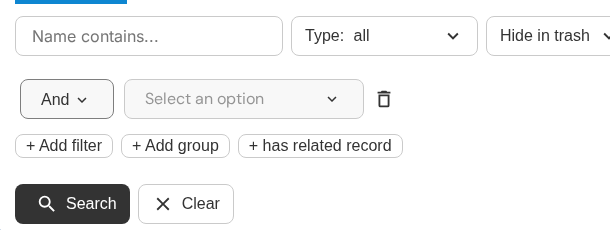
the "+ has related record" button, next to "+ Add filter" and "+ Add group"
A related-record filter has three parts:
- Has related / Has no related — choose whether the record must have at
least one matching related record (
Has related), or must have no matching related record (Has no related). - Relation — the kind of related record to look at (for example
Record metadata,Record log, orRecord tagfor a resource). This is required. - A nested condition — once you pick a relation, a nested filter builder
appears. Add one or more filters, combined with the same
AND/ORlogic, that the related record must satisfy. The condition is scoped to the related record's own fields.
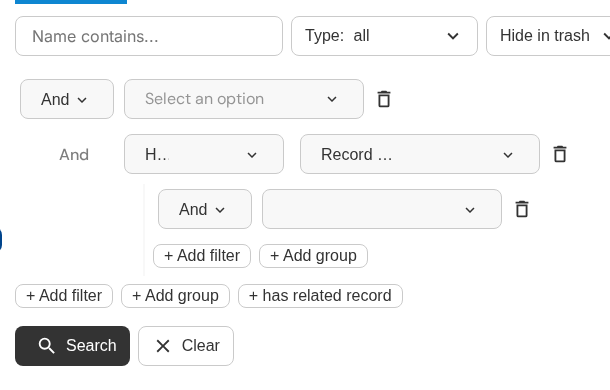
a "has related record" filter: resources that have a Record metadata
entry matching a nested condition
The nested condition currently requires at least one filter. To match records that have any related record of a given kind regardless of its contents, add a trivially-true condition on the related record.
Looking for a record by any word it contains rather than by precise field criteria? Use Full-Text Search instead — it searches every indexed record type at once and ranks results by relevance.
Customizing displayed columns
Every resource list — the Resources tab, an Advanced Search result, and project or bundle listings — lets you choose which columns are visible. Open the column selector (the columns icon above the table) and toggle individual columns, or use one of the two buttons at the bottom of the selector:
- Show All — display every available column for the record type.
- Reset to defaults — restore the record type's default set of columns, discarding your customization. Your page size and sort order are kept.
Your column choices are remembered per list in your browser, so a list keeps your selection the next time you open it. Reset to defaults clears that stored selection for the list.
Custom object attribute columns
When a custom-object search is scoped to a single object template — the same
condition that unlocks attribute filters,
an object template condition selecting exactly one template — that template's
attributes are also available as columns. The first few attributes are shown
automatically, and the full set appears in the column selector alongside the
built-in record columns, each labelled with its attribute display label;
selecting one adds a column that shows each custom object's value.<attribute>
value. These attribute columns are sortable, so you can order the results by an
attribute such as Priority or Status.
For example, scoping to an operator-task template lets you display a Status
and Priority column next to the built-in Name and Modified at, and sort by
either.
Like attribute filters, attribute columns are offered only for custom objects and only while the search is scoped to a single object template — a search across mixed record types cannot know which attributes apply.
Sorting the table
Click a sortable column's header to sort the list by that column. Clicking the same header again cycles the direction: the first click sorts ascending, the second click sorts descending, and a third click removes the sort and returns the list to its default order. Only columns marked as sortable respond to a header click — custom object attribute columns are sortable while the search is scoped to a single object template. Your sort choice is remembered per list in your browser.
Rows per page
The table footer carries a Rows per page selector offering 5, 10, 30, and 100 rows, together with the page controls and a Jump to page input for moving directly to a page. Your rows-per-page choice is remembered per list in your browser.
Row density
The toolbar above the table has a density control (the line-spacing icon) for adjusting row height. It offers three levels:
- Comfortable — the default, with the most vertical space per row.
- Cozy — reduced row padding.
- Compact — minimal row padding, fitting the most rows on screen.
Your density choice is remembered per list in your browser.
Resizing columns
Drag the grip at the right edge of a column header to change that column's width; the pointer shows a resize cursor and the grip's tooltip reads "Drag to resize · double-click to reset". A width you set this way overrides the automatic width limits for that column. Double-click the grip to clear your override and return the column to its automatic width. Resizing works on every column, including sortable columns and custom object attribute columns. Column widths are remembered per list in your browser.
By default, each column is sized within automatic minimum and maximum widths chosen for the kind of data it holds — free-text columns such as Name or Description are allowed to grow wider than compact columns such as a checkbox or a date. These limits keep a single wide column from squeezing the others; a width you set by dragging replaces them for that column.
How wide content is displayed
When a cell's content is wider than its column, the text is truncated with an ellipsis, and hovering the cell shows the full value in a tooltip — the tooltip appears only when the content is actually cut off. Long multi-line and Markdown attribute values instead offer an inline Show more / Show less toggle that expands and collapses the cell in place.
Most resource lists let a very wide table extend the page horizontally. A list embedded inside a record screen — such as a custom-object list on a resource — scrolls horizontally within its own area instead, so the surrounding screen stays in place.
Where your table settings are saved
Column selection, sort order, rows per page, density, and column widths are
stored in your browser (in localStorage) and kept separately for each list:
the Resources tab, each Advanced Search tab, a project or bundle listing, a
dashboard record_list widget, and each custom-object list all remember their
own settings. Because these preferences live in your browser, they stay private
to it, are not shared with other users, and are not carried in a shared link.
They are keyed to the major frontend version, so a major upgrade starts each
list from its default layout.